Squire on your browser, computer or smartphone
Written By Ignace Maes
Last updated 3 months ago
Use Squire where and how you want: via the web version, as an installed application on your PC, or mobile via your smartphone.
1. Squire via the internet browser
The fastest way to get started is via your internet browser (such as Chrome or Edge).
Go to https://app.squire.eu/.
Log in with your personal details and you immediately have access to all your consultations.
2. Installing Squire on your computer
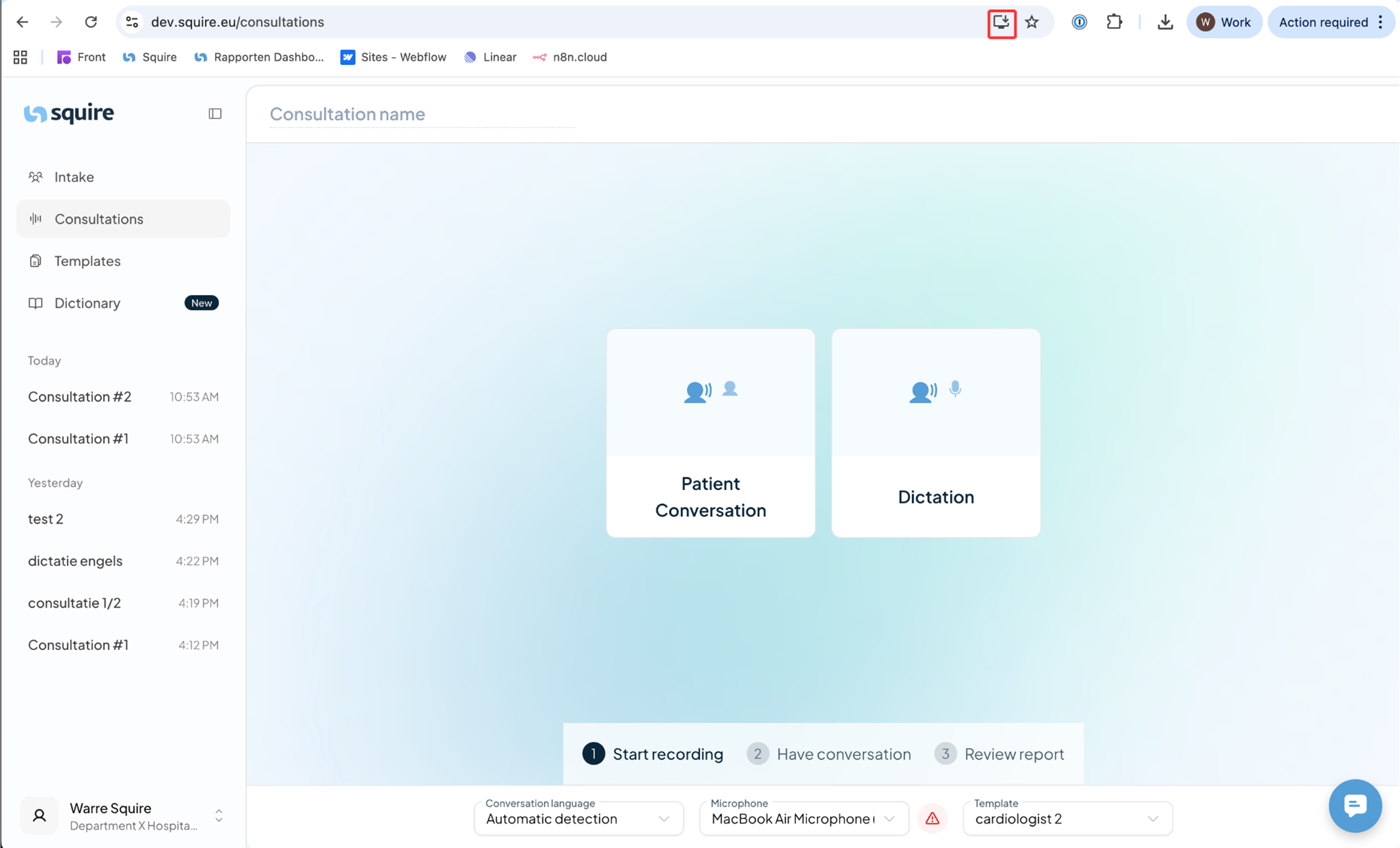
For even faster access, you can install Squire as an application on your PC. This works via the browser in the following way:
Navigate to the Squire application.
Click on the icon of a computer screen with a downward arrow to the right of your browser's address bar.
A pop-up will appear asking "Install app?".
Click on Install.
Squire will now open in its own window and can henceforth be accessed directly from your desktop or taskbar.
3. Squire on your smartphone
Squire is fully optimized for mobile use. For extra convenience, you can put Squire as an app on your home screen, allowing you to start recording with one click.
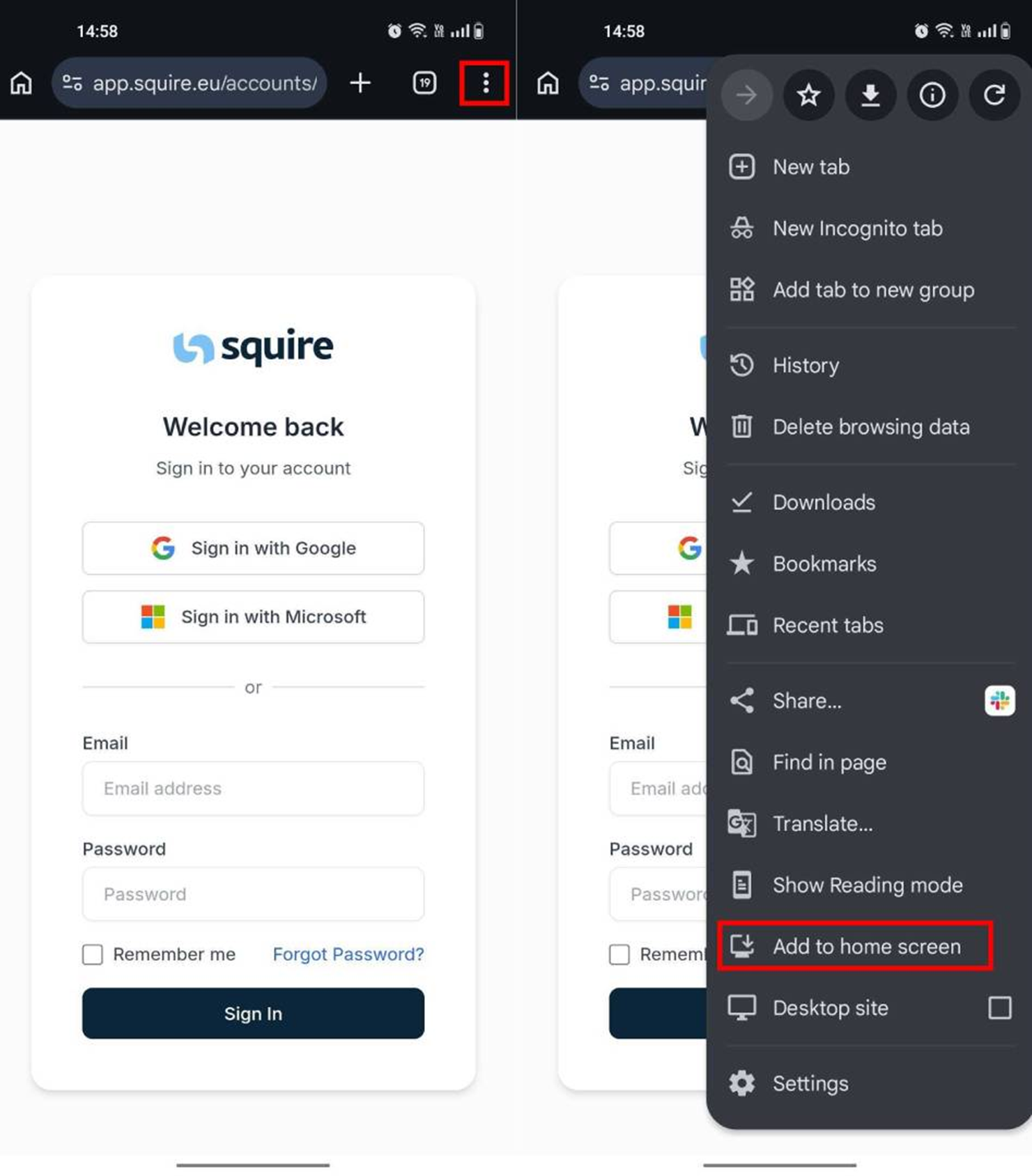
For Android users (Chrome):
Open the Chrome browser and go to app.squire.eu.
Tap on the three dots in the upper right corner of the browser.
Select the option "Add to Home Screen".
Squire is now among your other apps on your phone.
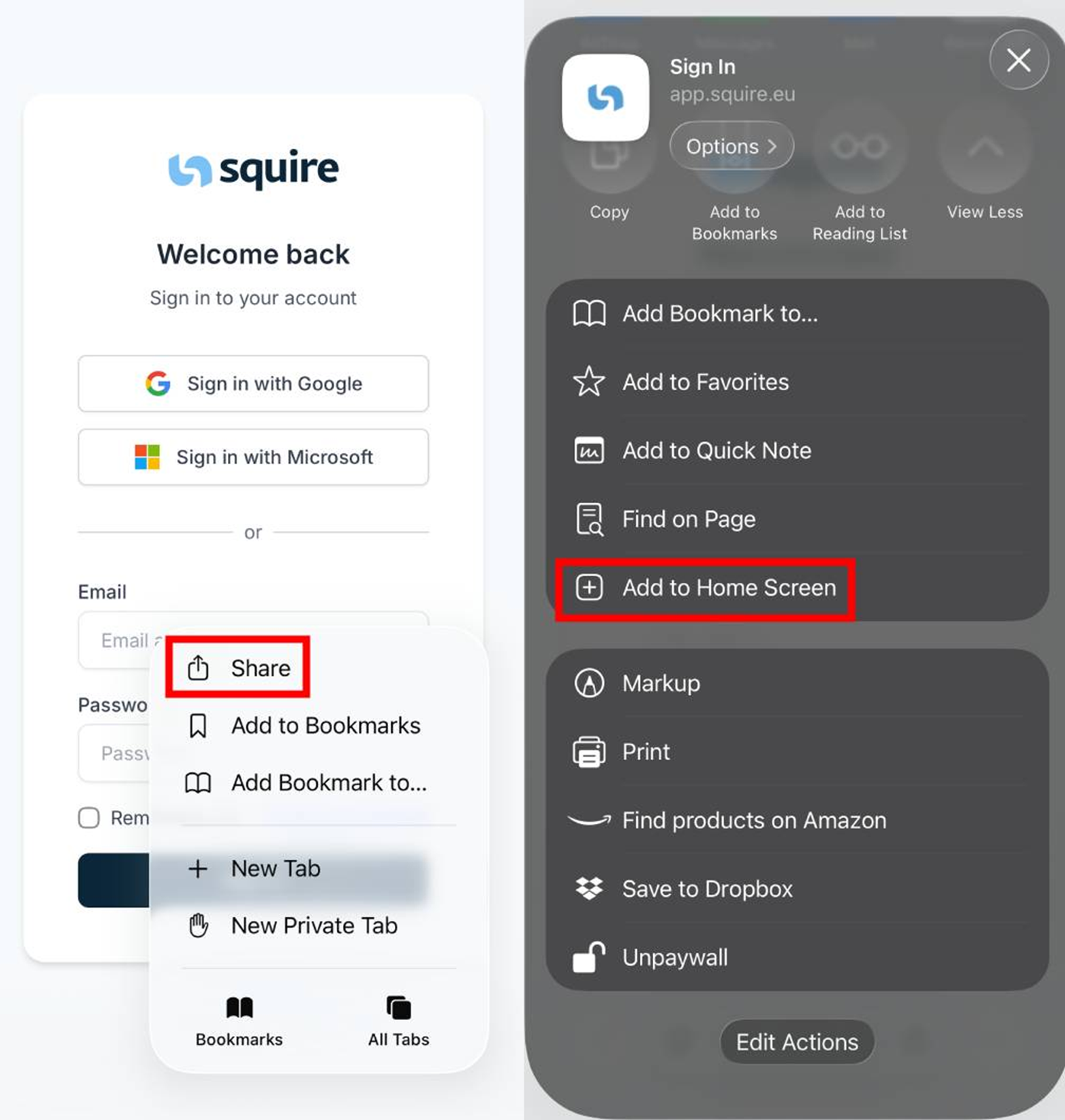
For iPhone users (Safari):
Open Safari and go to app.squire.eu.
Tap on the Share button (the square with the arrow pointing up) at the bottom of your screen.
Swipe up in the menu and tap on "Add to Home Screen" (or "Add to homescreen").
Tap on 'Add' at the top right. Squire is now directly accessible from your home screen.