How to add or remove colleagues?
Written By Ignace Maes
Last updated 3 months ago
Manage your organization by viewing team data or removing colleagues who no longer need access to Squire.
1. Viewing the team overview
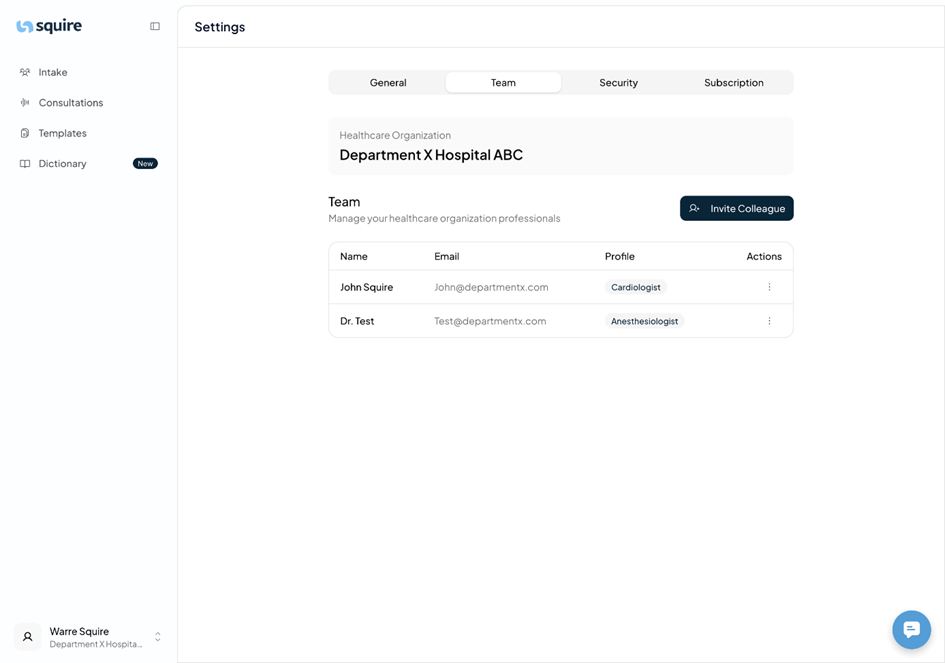
In the team overview, you get a complete picture of who is working with Squire in your organization.
Go to Settings and then Team.
Here you can see the following information per person:
Name: The full name of the colleague.
Email: The address they use to log in.
Profile: The role or status within the team.
2. Adding a colleague
If you want to add a colleague to the team, you can do so as follows:
Click the "Invite Colleague" button.
Enter your colleague's email address.
Click the "Send Invitation" button.
Your colleague will receive an email inviting them to join the team in Squire.
3. Removing a colleague
If a colleague leaves the organization or no longer needs access, you can easily remove the account.
Find the colleague in the list.
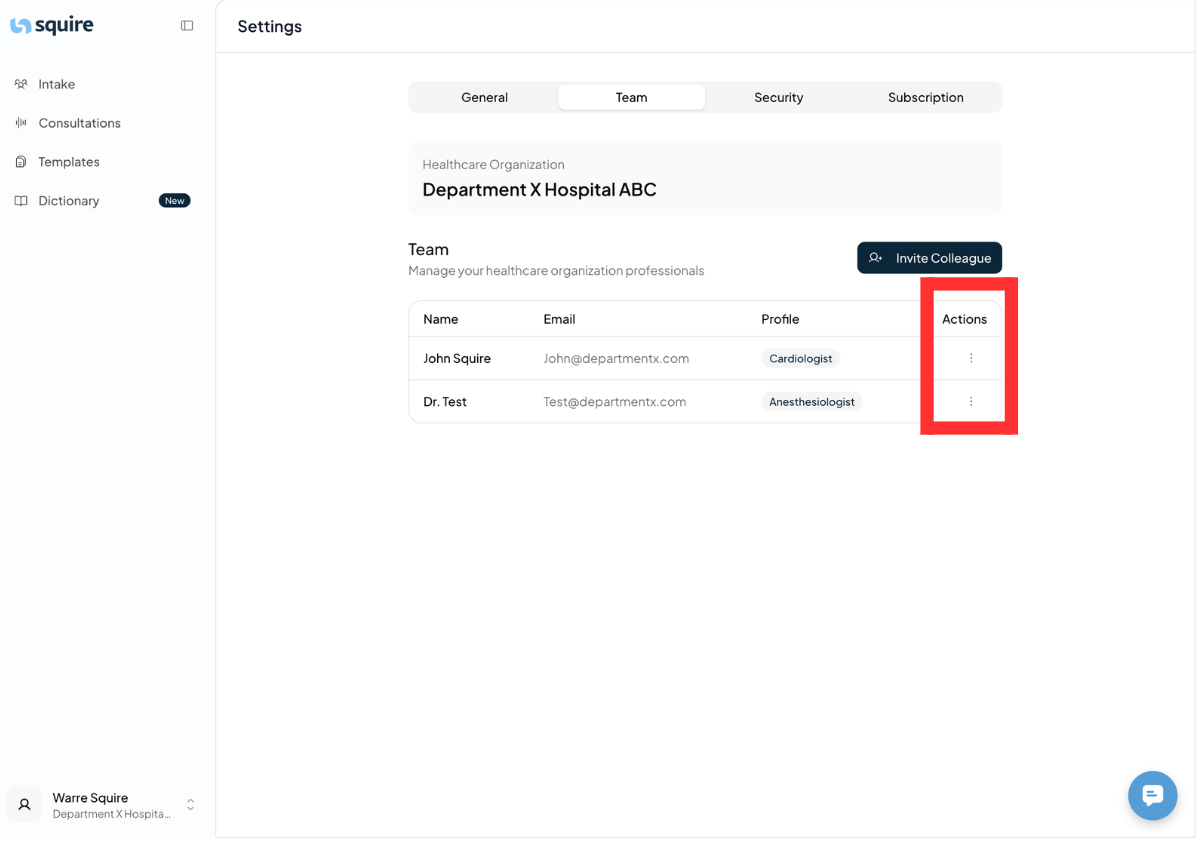
Click on the three dots on the right under the Actions column.
Select the option Remove from team.
Confirm the action in the pop-up that appears.