How do I make my own template?
Written By Squire Support
Last updated 2 months ago
Design a personal report structure that suits you as a medical specialist by giving your own instructions to the AI.
1. Start a new template
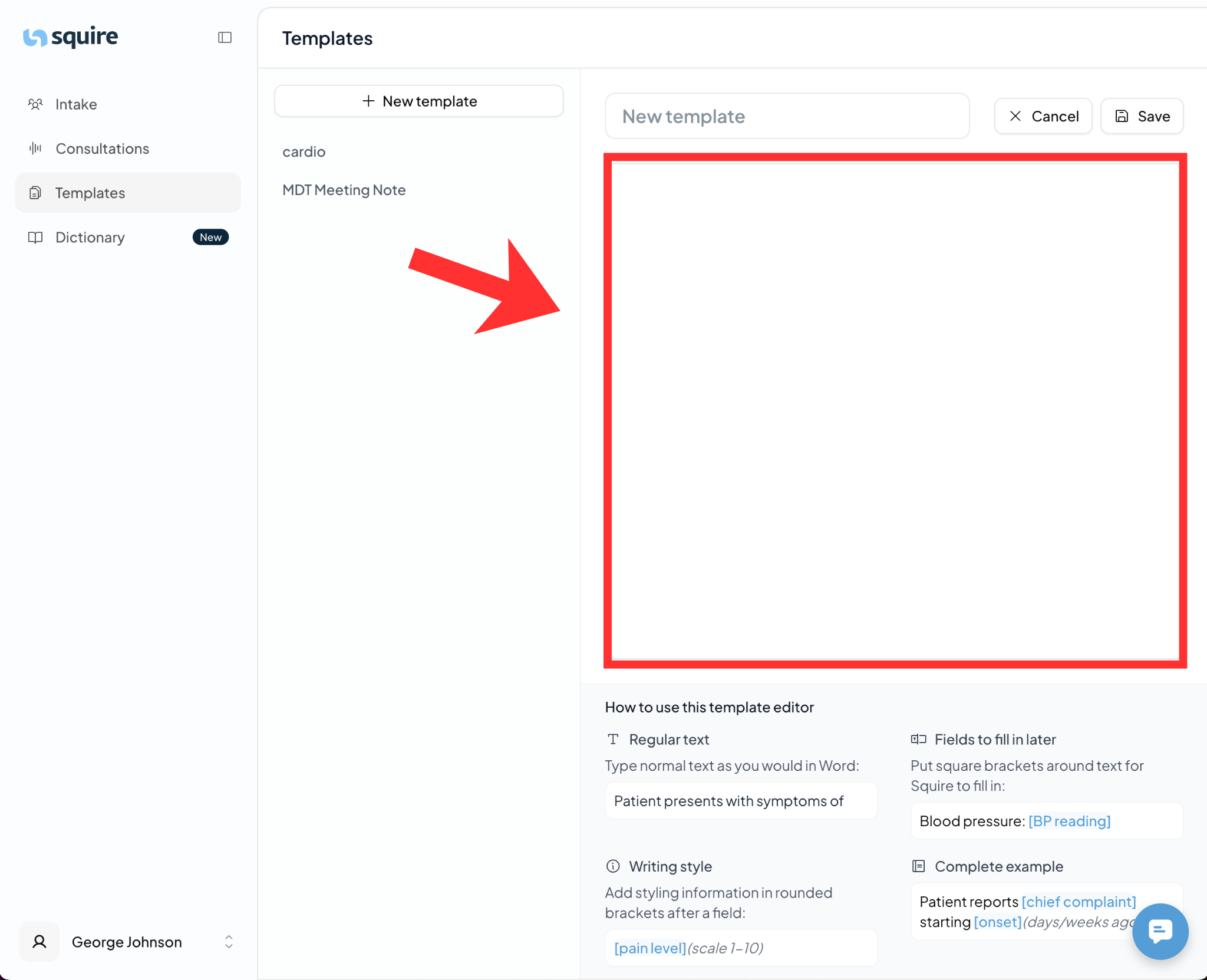
Go to the Templates page in the menu on the left.
Click on the + New Template button.
A menu will open on the right where you can start designing your template.
2. Quick start: create your template from existing notes
Provide our AI with a template or the last report you created (which is in your patient file) to configure a Squire template.
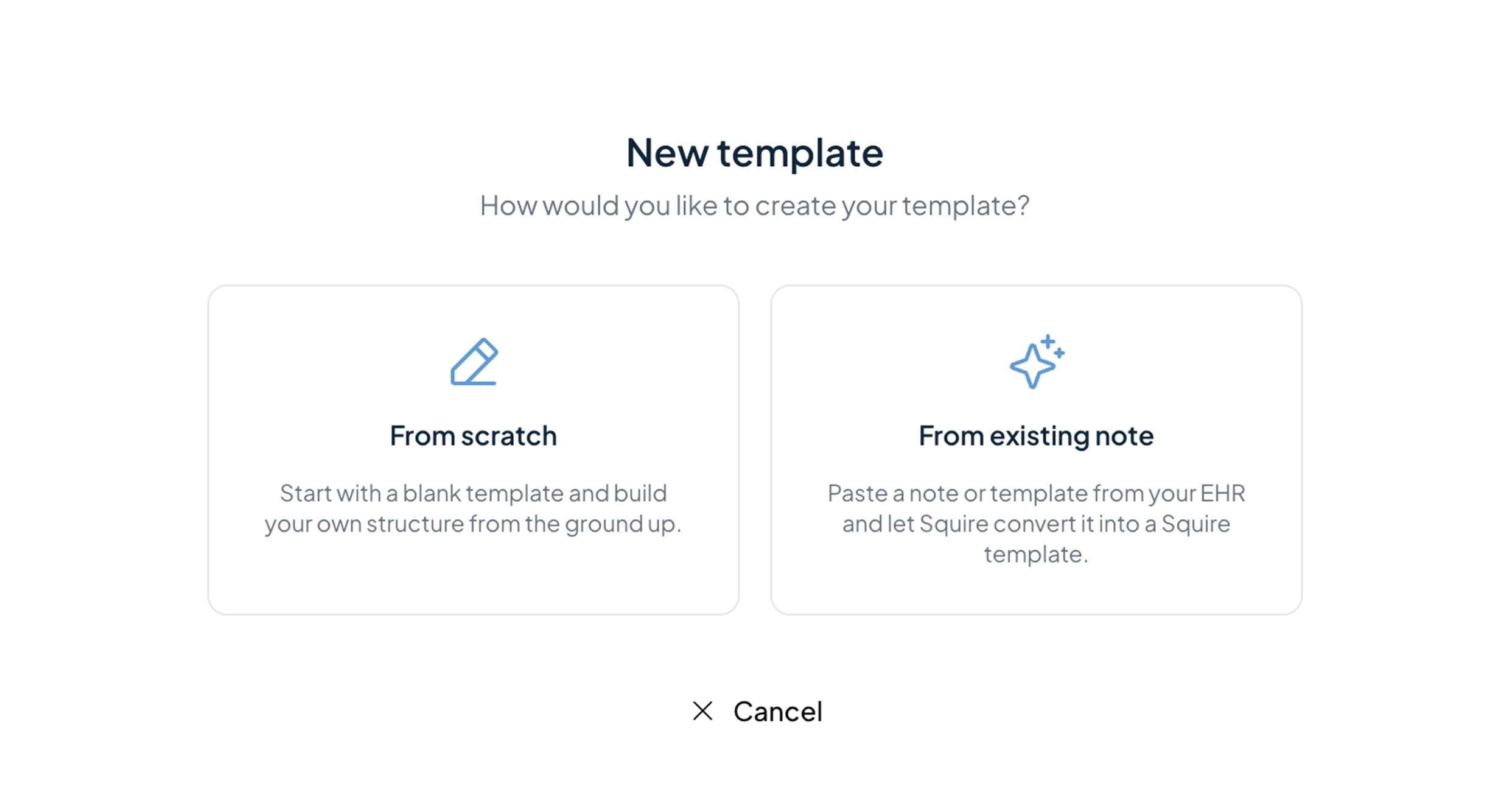
Upload or Paste: Click on the ‘From existing note’ button. Here you can enter your own notes or an old report.
AI generation: The AI analyses your style and automatically converts it into a Squire template with the correct variables and brackets.
Refine: Check the generated text and make any adjustments you deem necessary.
3. Naming and manual construction
Would you rather start from scratch? Then use the ‘From scratch’ button.
Template name: Give your template a clear, recognisable name.
Template layout (Instructions): Here you can type in the structure you want the AI to follow. You can use headings (such as Medical History, Examination, Treatment) and tell the AI how detailed or concise each section should be.
4. Use of brackets and variables
In the template editor, you can use brackets to guide the AI precisely. This helps to automatically fill in fields or provide additional instructions about the writing style.
Square brackets [ ] – Fields to be filled in later: Place square brackets around the text that Squire should fill in for you based on the conversation.
Example: Date: [Date]
Round brackets ( ) – Writing style & Instructions: Add round brackets immediately after a field to provide additional style information or explanations to the AI.
Example: [pain level](scale 1-10)
5. From template to result
It is useful to see how your instructions are converted into an actual report.
Input

Output

6. Tips for a good template
In addition to the basic structure, you can guide the AI in how the text appears in your report. There are four commonly used methods:
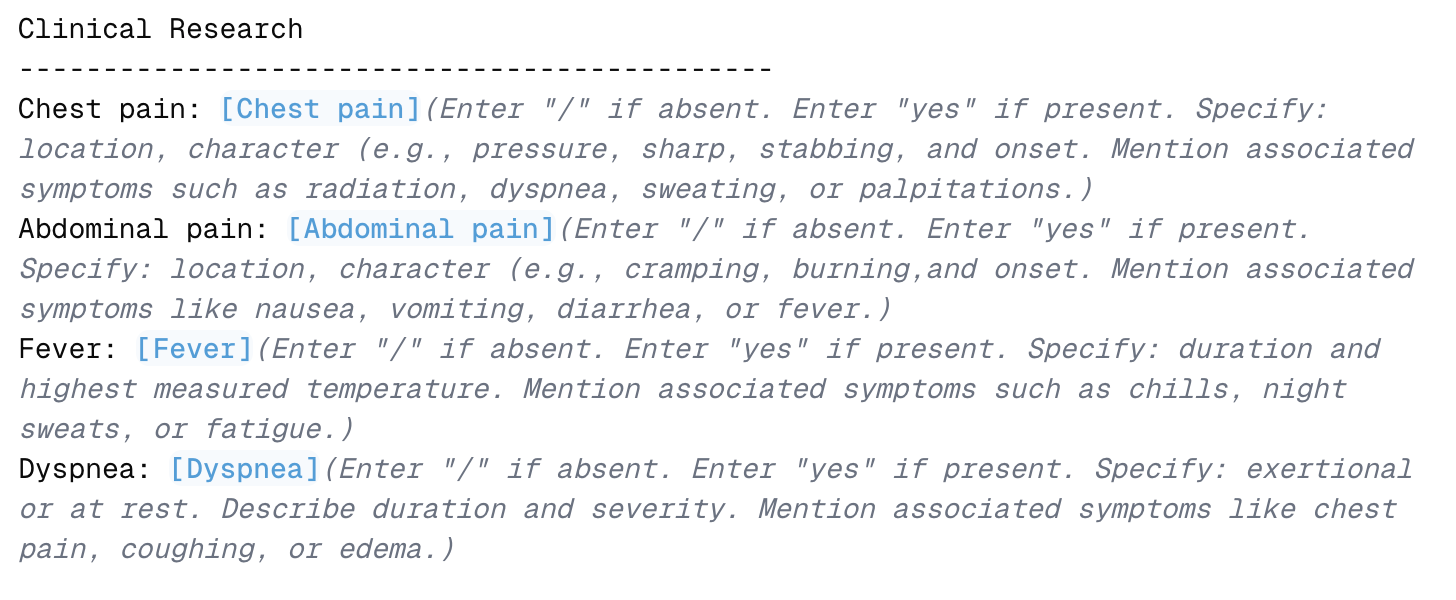
Per line (always present even if nothing is mentioned): The AI fills in the information on a specific line. If nothing was said about this topic during the conversation, the line remains (for example, with ‘not mentioned’).

Per line (only present if specified): You can instruct the AI to only display a complete line if something has actually been mentioned about it. If nothing has been said about it, the line disappears completely, resulting in a shorter report. You can do this by not placing any black fixed text in your template.
Inline filling (Processed in text): Here, the variables are placed in the middle of a running sentence. This is ideal for a natural writing style.
Example: Patient reports [main complaint] starting [start] (state number of days/weeks/months ago, write ‘?’ if not stated)
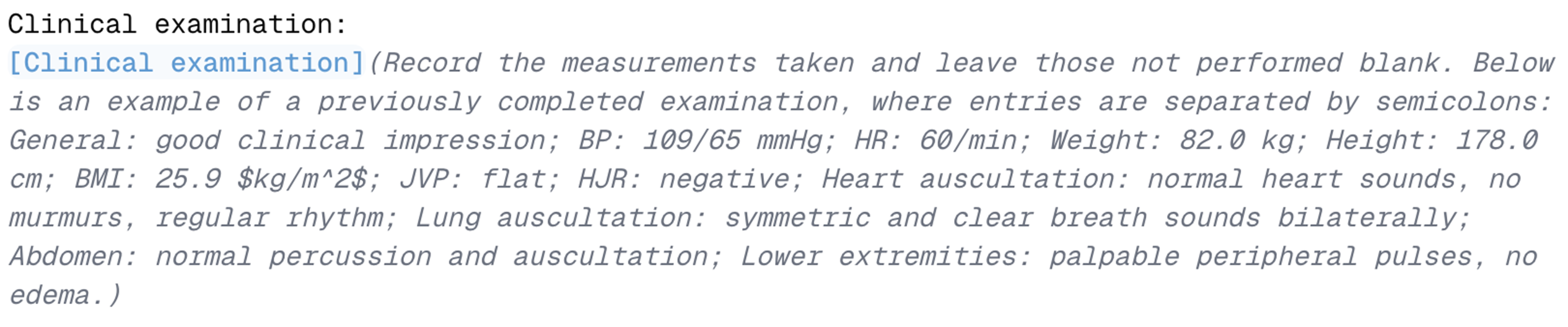
Block of text: You can ask the AI to gather all relevant information in a continuous block of text, rather than separate lines. This gives the AI a little more freedom to write a report.
7. Storing and saving
Are you happy about your design?
Click the Save button
Your new template will now appear immediately in your list of available templates.
From now on, you can select this template for every new consultation or dictation you start.
Bekijk hier nog extra video-uitleg over hoe sjablonen te configureren.