How do I share templates with my team?
Written By Squire Support
Last updated 2 months ago
Collaborate more effectively by making your successful templates available to all your colleagues within the practice.
1. View your personal templates
Before you can share a template, you must go to your own template environment.
Navigate in the sidebar to the Templates page.
Here you will see a list of all templates you have created.
Click on the specific template you want to share with your colleagues.
2. Change the sharing status
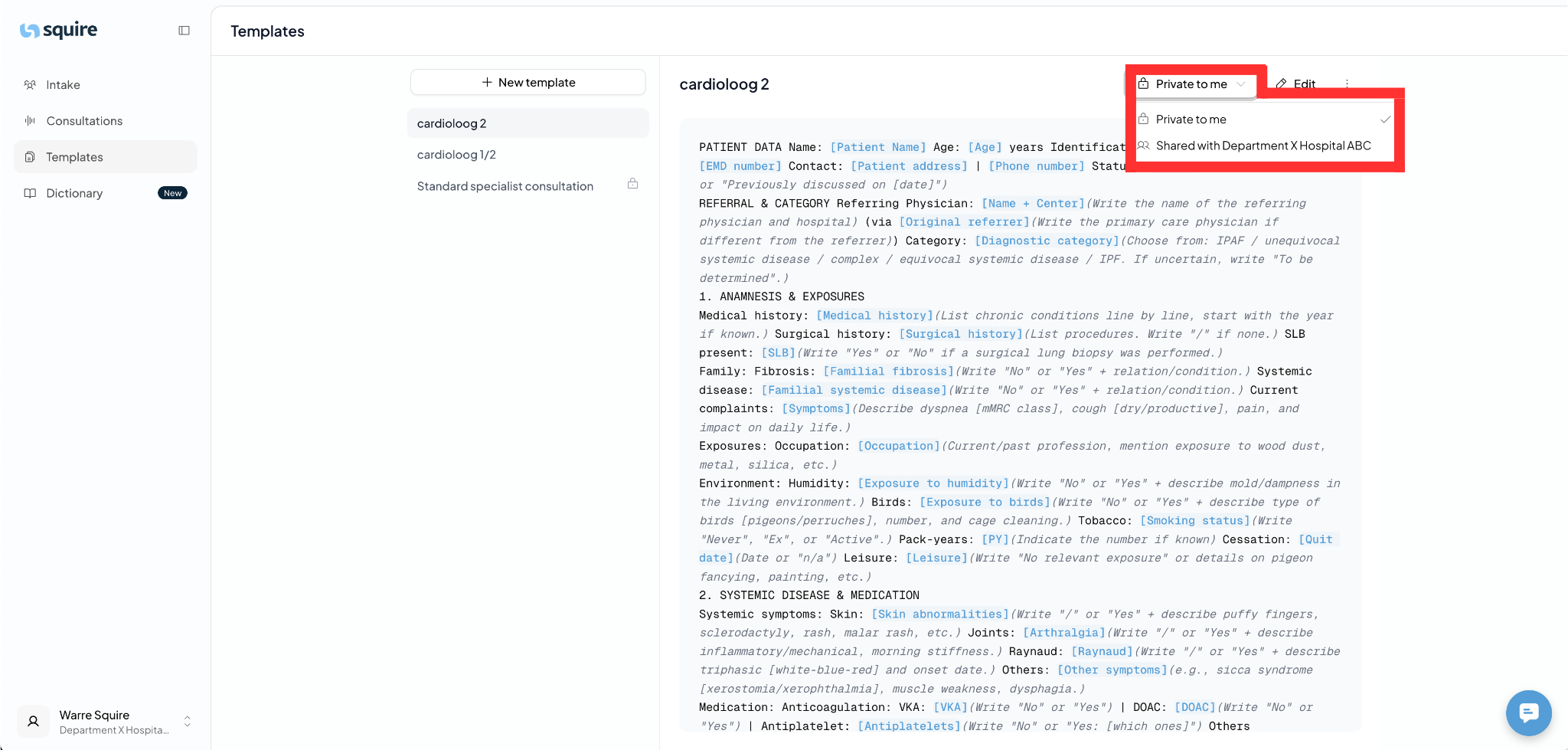
By default, new templates are visible only to you. You can recognize this by the status message at the top.
Look at the top of the screen, right next to the name of your template.
You will see the text "Private to me".
Click on this text. A menu will appear with the option to change it to "Share with team".
Once you select this option, the template becomes immediately visible and usable for all your team members in their own Squire environment. You can check who your team members are and how to add or remove them via this page.