How do I invite a patient for the AI intake?
Written By Ignace Maes
Last updated 3 months ago
1. Viewing the intake page
On this page, you manage all preparatory conversations.
Navigate to the Intake page.
Here you see an overview of all patients who have already completed a conversation with the AI.
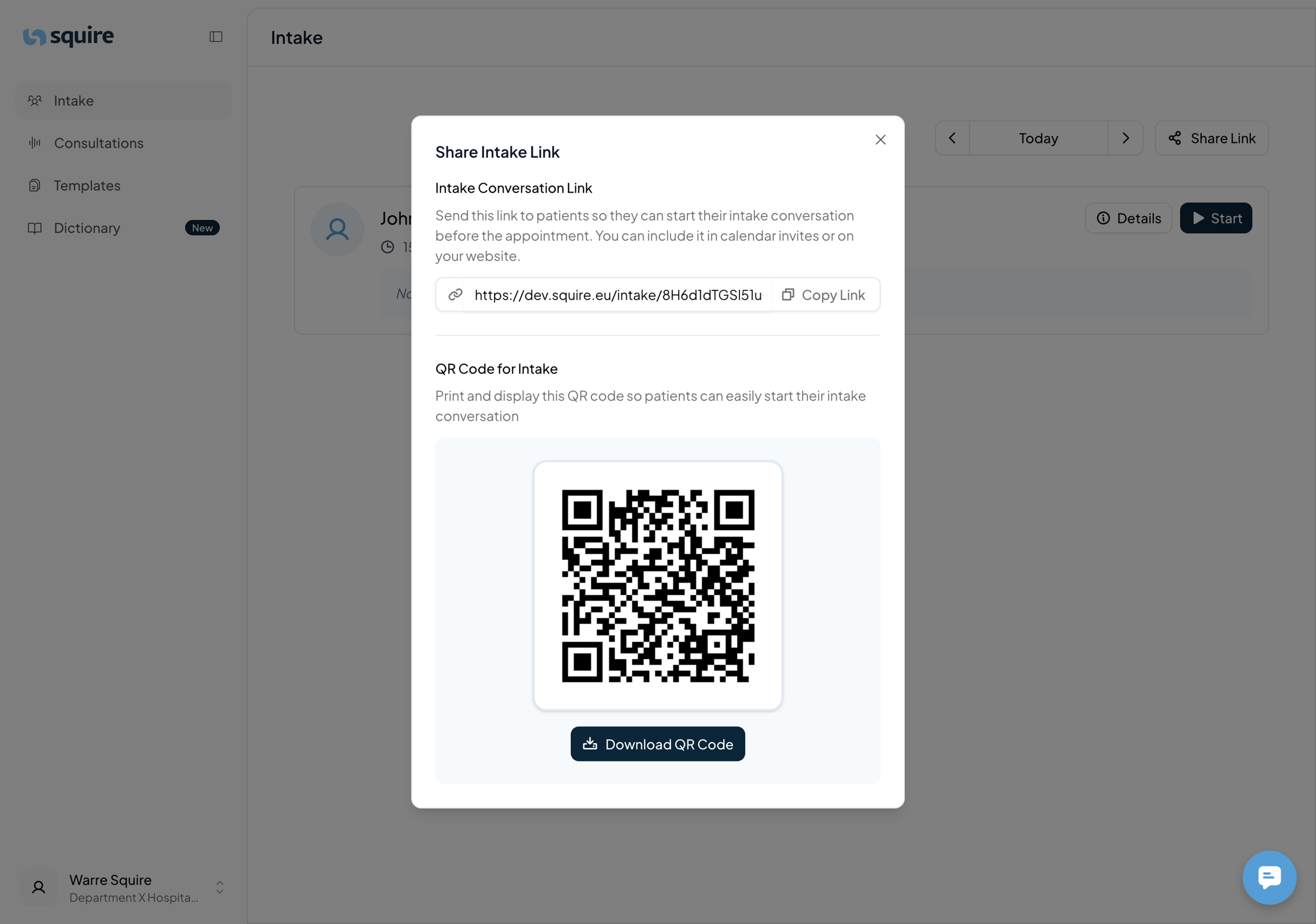
At the top right of the screen, you'll find the central action button: Share link.
2. Sharing options: Link and QR code
Once you click the Share link button, two options appear to give your patients access:
The Link: Copy this link and add it to your automatic confirmation email for appointments or have it sent out by your secretary to the patients. This way, the patient can talk or chat with the Squire assistant at home or on the go.
The QR code: Download the QR code and display it in a visible place in the waiting room. Patients can scan the code with their smartphone and start the chat or conversation directly while waiting. You may also notify your secretary to inform patients that they need to have a conversation with the Squire assistant before their consultation so that the doctor is well prepared.